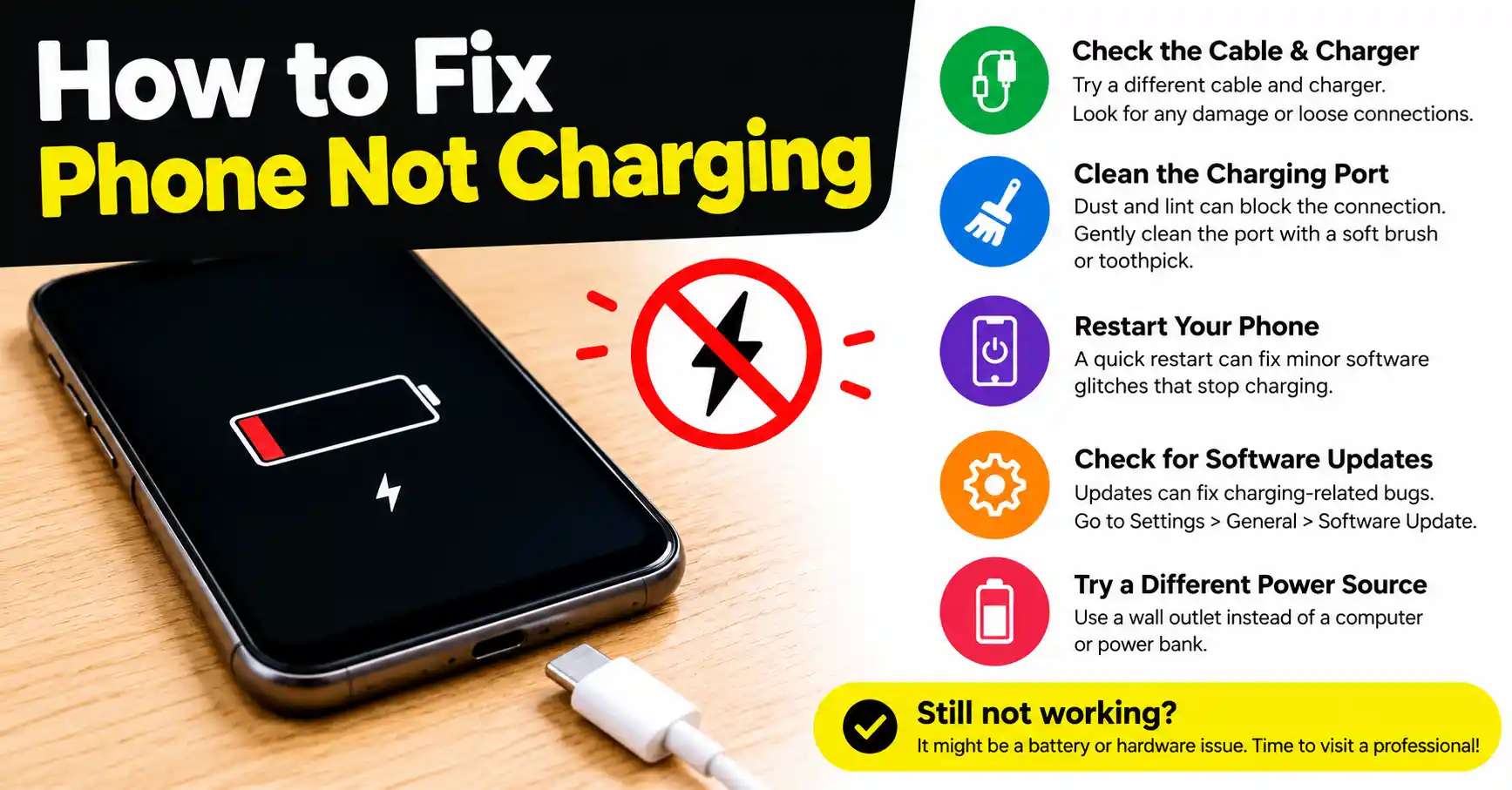
Battery Not Charging?
If your phone battery isn’t charging, take a quick look inside the charging port first. Dust and lint can build up there and stop your phone from charging properly. Turn off your device, shine a flashlight into the port, and gently remove any pocket lint using a dry, wooden toothpick.
Once you’ve inspected the charging port, try another cable and power adapter. You can also plug the charger into a different wall socket and restart your phone to see if that fixes the problem.
Key Takeaways
- Lint is the enemy: A dirty charging port is the top reason phones fail to charge.
- Isolate the issue: Always test a different cable, adapter, and wall outlet before assuming your phone is broken.
- Never use metal: Do not use safety pins or paperclips to clean your port. They can ruin the connection pins.
- Use wireless charging: If your phone’s charging port is damaged or damp, try a wireless charger to keep your phone powered while you arrange a repair.
Introduction
Plugging your cell phone in at night only to wake up to a dead battery is frustrating. When a phone won’t take a charge, it is easy to assume the battery is dead and needs an expensive replacement.
In most cases, charging issues come from a dirty charging port, a damaged cable, or a minor software problem. Here are the easiest ways to troubleshoot and fix a phone that refuses to charge.
1. Check Your Charging Port and Clear Out Any Dirt
Start by inspecting your phone’s charging port. Keeping your phone in your pocket or bag can let dust and lint collect inside the Lightning or USB-C port, sometimes stopping it from charging properly. it from charging properly. Every time you plug your cable in, you push that dirt deeper. Eventually, the cable can no longer connect.
How to clean your port safely:
- Turn off your phone completely.
- Shine a flashlight into the charging port. Look for gray or black dirt at the bottom.
- Take a dry, non-metallic object—like a wooden toothpick or a plastic dental pick—and gently scrape the inside of the port.
- Pull the lint out carefully.
- Reconnect your charger and check whether your phone starts charging properly.
Warning: Never use a needle, safety pin, or paperclip. Metal objects can scratch the delicate connection pins or cause a short circuit, permanently damaging the phone.
2. Inspect and Swap Your Charging Accessories
Cables take a lot of abuse. They get bent, rolled over, and pulled. Even if your cable looks fine on the outside, the wires inside might be broken.
- Test a new cable: Swap your current cable for one you know works.
- Check the power adapter (charging block): The USB port on the power block can become loose or break. Try plugging the new cable into a different adapter to check whether your phone starts charging normally.
- Check for accessory compatibility: If your phone gives an “Accessory not supported” error, you may be using a cheap, uncertified cable. For your iPhone, stick with MFi-certified cables or accessories from reliable brands to avoid compatibility issues and charge your device safely.
3. Check Your Power Source
Sometimes the problem is the wall outlet, not the phone or the charger.
- Switch outlets: Move your charger to a completely different wall outlet in another room.
- Ditch the computer USB: USB ports on computers output less power than wall outlets. If your screen is on or you have apps running, a computer USB port might not output enough power to charge the battery.
- Avoid faulty power strips: Plug your adapter directly into the wall to make sure your surge protector isn’t broken.
4. Force Restart Your Device
A minor software glitch can freeze your phone and stop it from charging. A force restart clears the phone’s memory and often fixes software bugs.
For iPhone:

- Quickly tap the Volume Up button and let go right away.
- Quickly press and release the Volume Down button.
- Keep holding the Side (Power) button until the Apple logo shows up on your screen.
For Android (Samsung, Google Pixel, etc.):
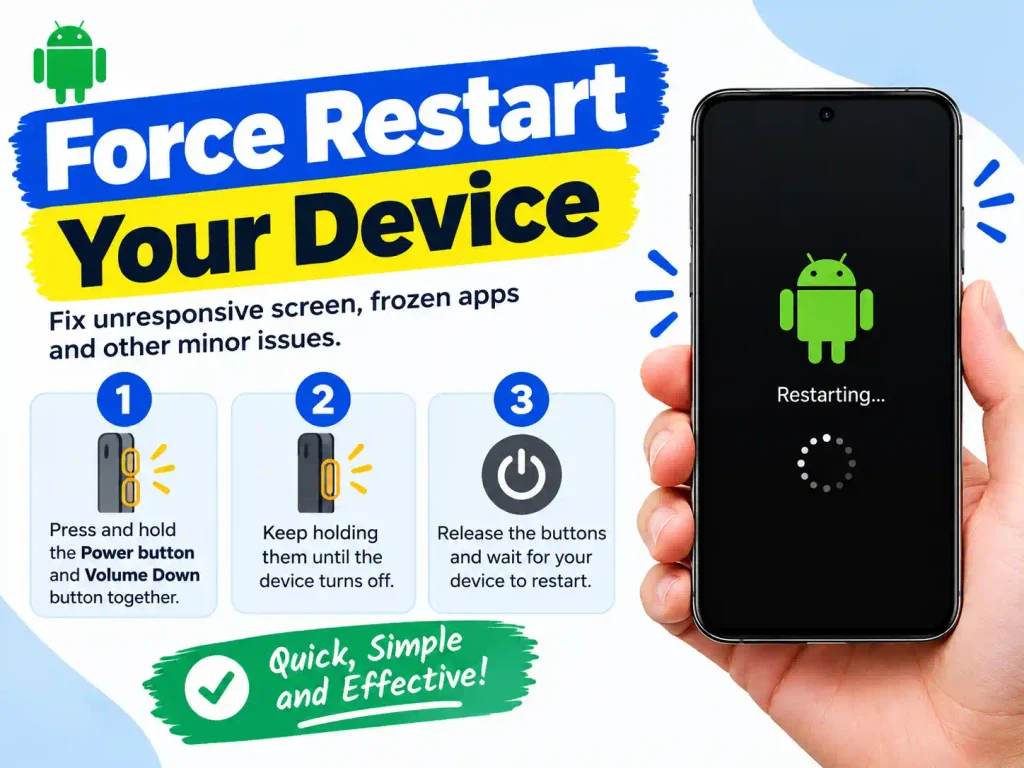
- Hold down the Power and Volume Down buttons together.
- Hold them for about 10 to 15 seconds until the screen goes black and the brand logo appears.
5. Bypass the Port with Wireless Charging
If your physical port is damaged, you can often bypass the issue by using a wireless charger.
Modern smartphones—including iPhones (iPhone 8 and newer) and premium Android devices—support Qi or MagSafe wireless charging. If your phone charges wirelessly but not through a cable, the problem may be with the charging port rather than the battery.
6. Check for Water Damage (Moisture Warning)
If you recently dropped your phone in water, took it into a steamy bathroom, or got caught in the rain, moisture may be trapped in the port.
Modern iPhones and Androids have built-in moisture detection. If the phone senses water, it will show a warning and stop charging to prevent electrical damage.
How to handle a wet charging port:
- Unplug it right away: Don’t try to charge the phone again.
- Air dry: Tap the phone gently against your hand with the port facing down to remove extra liquid. Leave your phone in a dry, cool place for at least 24 hours so it can dry completely.
- Avoid heat: Never use a hair dryer or put the phone in the oven. Heat will melt the internal glue and damage the battery.
- Skip the rice: Apple and Google both say you should not put your phone in a bag of rice. Rice particles can lodge inside the charging port and potentially damage its internal components.
7. Verify Your Battery Health
All lithium-ion batteries wear out over time. As your phone gets older, its battery can wear down and lose the ability to hold power for long.
To check your iPhone’s battery condition, head to Settings, choose Battery, and open Battery Health & Charging. If the Maximum Capacity has dropped below 80% or your iPhone displays a “Service” message, consider replacing the battery.
How to check battery health on Android?
Android settings vary by brand. On a Google Pixel or Samsung Galaxy, you can usually find battery details in Settings > Battery or Settings > Device Care.
When to Seek Professional Repair
If you have cleaned the port, swapped cables, checked different outlets, and restarted the phone, but the battery still will not charge, you likely have a hardware problem.
If you’ve tried everything else, it’s probably time to get your phone checked by a professional.
Review Your Phone Protection Plan: Check whether your device qualifies for repair or replacement through AppleCare+, your carrier’s insurance plan (AT&T, Verizon, or T-Mobile), or an active manufacturer’s warranty.
Authorized Repair Centers: Take your phone to an Apple Store, Best Buy (Geek Squad), or an authorized repair shop.
Repair Costs: Replacing a battery typically costs between $50 and $100 in the US. Replacing a damaged charging port usually costs between $75 and $150, depending on the phone model.
Battery Health and Professional Repair
If you have systematically ruled out the port, the cables, the power source, and software glitches, you are likely dealing with physical hardware degradation.
Utilize Wireless Charging as a Diagnostic: If your smartphone supports Qi or MagSafe wireless charging, place it on a compatible charging pad. If the device charges successfully via the wireless pad but fails via the cable, you have definitively isolated the issue to a broken physical charging port rather than a dead battery.
Verify Battery Degradation: Lithium-ion batteries chemically age with every charge cycle. Navigate to your device’s battery settings (Settings > Battery > Battery Health & Charging on iOS, or Settings > Device Care on Android) to review its maximum capacity. If the capacity has fallen below 80%, the battery is chemically depleted and requires replacement.
Seek Authorized Repair: A broken charging port or a depleted battery will require a professional technician to open the device chassis. Review your warranty status or carrier insurance plans, as these repairs can often be covered under a small deductible. Out-of-pocket, a battery replacement typically ranges from $50 to $100, while a motherboard-level charging port repair can cost between $75 and $150. Always utilize authorized repair centers to ensure genuine, safe replacement parts are used.
Frequently Asked Questions
Why is my phone losing battery even though it’s plugged in?
If your phone is plugged in but the battery level keeps dropping, it’s using power faster than the charger can provide it.This usually happens if you are playing heavy games, using GPS, or using a weak charger (like a computer USB port).
Can a damaged charging port be fixed?
Yes. A broken or loose charging port can usually be replaced by a repair technician. They will open the phone and install a new port on the motherboard.
How much does it usually cost to fix a phone’s charging port in the U.S.?
If your phone is out of warranty, a charging port repair usually costs between $75 and $150 at local repair shops. If you have AppleCare+ or phone insurance, the repair is usually covered under a small deductible (often $29 to $99).
Is it safe to use inexpensive third-party chargers?
Using extremely cheap, unbranded chargers from gas stations or dollar stores is a bad idea. They often lack safety chips, which can overheat your phone, damage the motherboard, or start a fire. Always use certified accessories.
What should I do if my phone becomes hot while it’s charging?
It is normal for a phone to get slightly warm while fast-charging. However, if the phone becomes uncomfortably hot, unplug it right away. Remove the case, move the phone out of the sun, and let it cool down. Overheating can ruin a battery permanently.
Why is my phone plugged in, but the battery isn’t charging?
It usually means the charging cable is damaged, the wall adapter is faulty, or dirt inside the charging port is blocking the connection.
Read Also
Best Android TVs in India (2026): Top Models and Buying Guide